


Community TV Remotes
Using Your Remote
Your remote controls your TV experience. There are three remote options – standard, clean or full-size. Identify your remote below (there are pictures in the dropdowns) and follow the instructions for setup and use.
Explore the ins and outs of your remote.
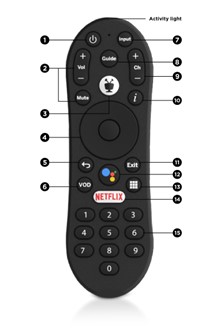
- Once programmed, Power turns your TV on and off.
- Volume and Mute controls your TV, receive or soundbar audio (if programmed).
- TiVo takes you to your home screen.
- The Navigation Ring controls playback and helps you navigate your menus.
- The inner circle, or OK button, is used to choose menu items and to navigate playback controls.
- The Up, Down, Left, Right buttons are used to navigate menu items.
- Playback controls while watching a show:
- Pause/play: Press OK to bring up playback controls. Press OK to pause. Press OK again to resume playback.
- Rewind/Fast-Forward: Press Left (rewind) or Right (fast-forward) to bring up playback controls. Press OK to begin rewinding or fast-forwarding. Select Play and press OK to resume playback.
- While rewinding or fast-forwarding, press OK on those playback controls one or two times to change the speed to 2X or 3X for faster rewinding or fast-forwarding.
- Replay: To rewind 8 seconds to catch something you missed, press OK then select Replay.
- Advance: To fast-forward 30 seconds at a time, press OK then select Advance.
- While watching live TV, press Up for the mini-interactive guide, Down to see the program information for the show you are watching.
- Press Back to go back to the previous screen or to go to live TV from the home screen.
- Note: This feature is not available.
- Use the Input button to select the input for your TV (if programmed).
- Guide takes you to the on-screen interactive guide.
- Use the Channel Up and Down buttons to change the channel or move quickly through your lists or your interactive guide.
- The Info button shows the info card while watching a show. Press Info again to make the info card disappear.
- You can also use this to turn closed captions on or off. Press the Info button, and then select Turn Closed Captions On or Turn Closed Captions Off.
- You can also use this function to record. See How to Record for more details.
- A screen reader can be enabled or disabled by pressing and holding Info for more than 3 seconds.
- Go back to the previous channel while watching TV by pressing the Exit button. This button also closes certain apps.
- Issue voice commands with the Google Assistant button by pressing the button, releasing it and speaking.
- The Grid button jumps you to the Apps & Games screen.
- Launch Netflix with the Netflix button. (Separate subscription required.)
- Use the number buttons to type in a specific channel number. While on the home screen, use the numbers to jump directly to the options on the Navigation Bar.
- 1 – Watch TV
- 3 – What to Watch
- 4 – Guide
- 5 – Apps & Games
- 7 – Search
- 9 – Notifications
Some properties may provide you with a clean remote for simplified use and easy sanitization.
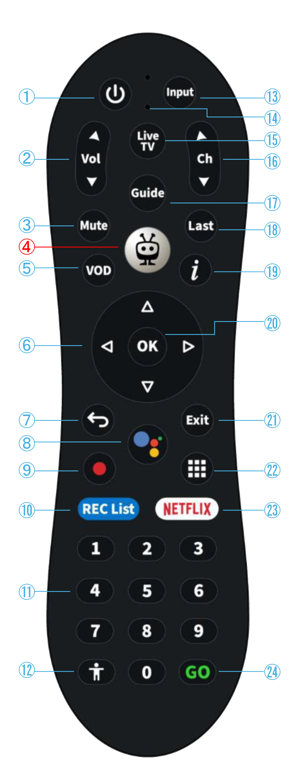
- Once programmed, Power turns your TV on or off.
- Vol controls the volume on your TV, receiver or soundbar audio (if programmed).
- Mute turns the sound on or off.
- TiVo takes you to your home screen.
- Note: This feature is not available.
- Navigate the screen using the Up, Down, Left and Right arrows.
- Press Back to go back to the previous screen or to go back to full screen video from the home screen.
- Issue voice commands with the Google Assistant button by pressing the button, releasing it and then speaking.
- Record the show you are watching or the selected show in the guide.
- REC List shows a list of your recorded content.
- Use the number buttons to enter channel numbers.
- Note: This feature is not available.
- Use the Input button to select the input for your TV (if programmed).
- This is the microphone for voice search capabilities.
- Watch live TV by selecting the Live TV button.
- Use the Channel Up and Down buttons to change the channel or move quickly through your lists or your interactive guide.
- Guide takes you to the on-screen interactive guide.
- Last goes to the last viewed channel.
- Info shows the info card while watching a show. Press Info again to make the info card disappear.
- You can also use this to turn closed captions on or off. Press the Info button, and then select Turn Closed Captions On or Turn Closed Captions Off.
- A screen reader can be enabled or disabled by pressing and holding Info for more than 3 seconds.
- OK accepts the current selection.
- Go back to the previous channel while watching TV by pressing the Exit button. This button also closes certain apps.
- The Grid button jumps you to the Apps & Games screen.
- Launch Netflix with the Netflix button. (Separate subscription required.)
- Note: This feature is not available.
You may have a full-size remote for easier handling and full functionality.
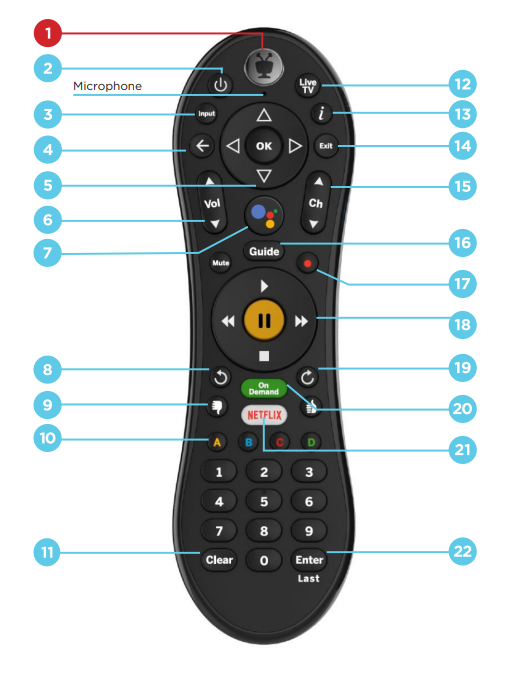
- TiVo takes you to your home screen.
- Once programmed, Power turns your TV on or off.
- Use the Input button to select the input for your TV (if programmed).
- Press Back to go back to the previous screen or to go back to full screen video from the home screen.
- Use the Arrow buttons to navigate the TiVo menus. When watching video, press Down to see Continue Watching and Favorite Channels panels.
- Volume and Mute controls the volume on your TV, receiver or soundbar.
- Issue voice commands with the Google Assistant button by pressing the button, releasing it and then speaking.
- Repeat the last eight seconds of the show with the Replay button. Press and hold to jump to the beginning of your show.
- Use the Thumps Up or Thumbs Down to confirm certain commands, as instructed on screen.
- A, B, C and D buttons have various functions depending on where you are on the screen.
- Use Clear to dismiss items appearing over Live TV and delete titles from My Shows and your To Do List.
- Watch live TV by selecting the Live TV button.
- Info shows the info card while watching a show. Press Info again to make the info card disappear.
- You can also use this to turn closed captions on or off. Press the Info button, and then select Turn Closed Captions On or Turn Closed Captions Off.
- A screen reader can be enabled or disabled by pressing and holding Info for more than 3 seconds.
- Go back to the previous channel while watching TV by pressing the Exit button. This button also closes certain apps.
- Use the Channel Up and Down buttons to change the channel or move quickly through your lists or your interactive guide.
- Guide takes you to the on-screen interactive guide.
- Record the show you are watching or the selected show in the guide.
- Use the TrickPlay buttons (Rewind, Fast-Forward, Stop, Pause and Play) to control video.
- Move forward in 30-second increments with the Advance button. Press and hold to jump to the end of the show. Or, press to jump to the next tick mark when fast-forwarding.
- Note: This feature is not available.
- Launch Netflix with the Netflix button. (Separate subscription required.)
- Return to the last channel you viewed with the Enter/Last button.
Follow these steps to pair your TV or sound system to your MidcoTV remote.
- Press the TiVo button to go to the Home screen.
- Select Menu.
- Go to Device Settings.
- Select Remotes and Accessories.
- Select the TiVo remote.
- Select Change TV Setup or Change Audio Setup.
- Select Setup TV Now or Setup Audio Now.
- Follow the instructions on your TV.
- The box will scan for devices.
- Select Next if prompted to program your TV or audio device.
- Select the brand of the device if prompted.
- Follow prompts for testing the remote control.
- If your remote is working, click Finish. If not, follow the steps below.
If your remote is not working after attempting programming:
- Select Change TV Setup or Change Audio Setup.
- Select the TV or audio device brand.
- The TV will prompt you to retest the remote.
- Select Yes or No to try again, depending on whether the remote worked for test functions.
- Select Finish if it worked. If it didn’t, select or Change TV/Change Audio Receiver.
Still need help? Contact Midco for support.
- Press the TiVo button to go to the Home screen.
- Select Menu and scroll down to Accessibility.
- Select Subtitles & Closed Captioning.
- Select On or Off to turn closed captioning on or off for all shows.
Google Assistant
Use Google Assistant for a smarter TV experience. You can search for programs, change channels, launch apps and more using your voice.
Just press the Google Assistant button and wait for the Google search bar to appear on your screen. Then, issue a voice command. Note: You must be signed into your Google account to use voice commands.
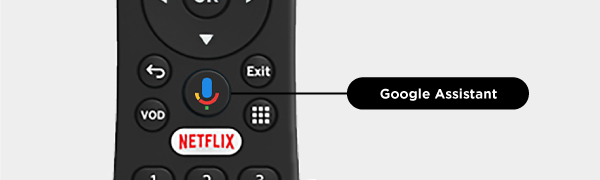
To control your TV or audio equipment, make sure there is a clear line of sight to your equipment and point the remote at your equipment when using it.
If that doesn’t help, try the following actions:
- Check the remote batteries.
- The activity light on the remote should blink with each press of a button. If it does not, replace the batteries.
- Reboot your TV box.
- If the remote is working after rebooting the box, troubleshooting is completed. If it is still not working, continue to the next step.
- Try to re-pair your remote or reset your remote using our Re-Pair Your MidcoTV/MidcoStream Remote instructions above.
- You can also use our remote pairing guide.
- After completing the factory reset, use the remote control within 3-6 feet of the box.
- The activity light will flash yellow as it is used and Searching for accessories should appear on screen.
- You may need to select TiVo Remote from the on-screen list.
- Press OK to move ahead.
None of the above steps help? Contact Midco for support.
If your remote activity light continually blinks five times in a row with a pause in between, your batteries are low and need to be replaced soon. If you want to check your battery level, follow these steps.
- Press the TiVo button to go to the Home screen.
- Select Menu and scroll down to Remote Settings.
- Select Remotes Control Diagnostics.
- Remote Battery Level will display the remote's battery level.
All logos are property of their respective corporations or entities. Use of these logos does not constitute an endorsement by the entities of Midco’s products or services. The respective companies retain trademark and registered trademark ownership for those referenced items.
