


Home Screen
Navigating the Home Screen
Your home screen is the place to access everything your Community TV services have to offer through the MidcoTV platform. Press the TiVo button on your remote control to get started.

Use the navigation pad buttons on your remote (up, down, right and left) to move around and press the middle button (OK) to select one of the menu items. Use the Back button to go back to the previous screen.
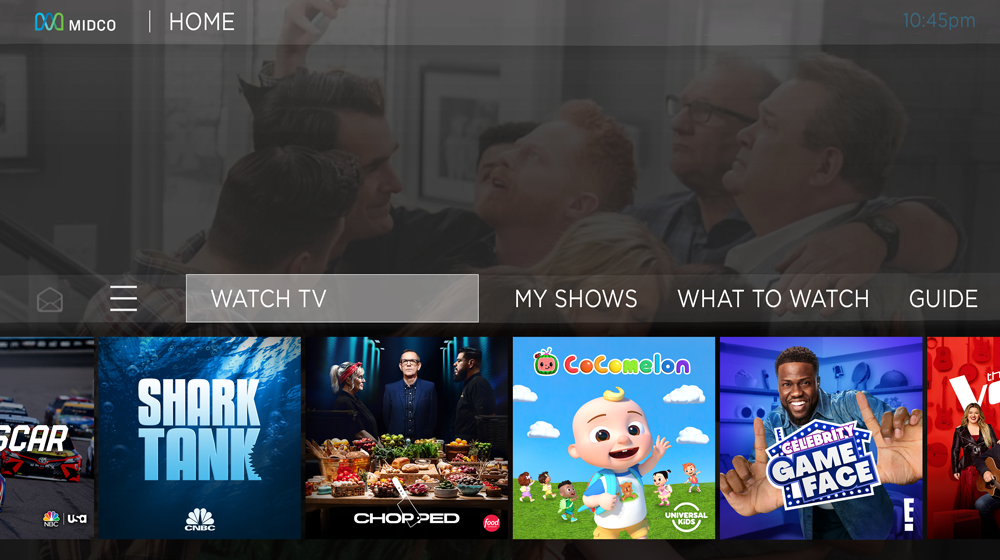
- The Menu icon – the three horizontal lines to the left of Watch TV – takes you to the Manage, Settings and Help menus.
- The Navigation Bar lets you navigate through your MidcoTV experience. It includes:
- Watch TV goes to the last live TV channel you were watching.
- Guide shows you the interactive, on-screen guide, so you can see what’s on live TV and what shows are available to watch.
- Apps & Games gives you access to your streaming and other apps downloaded from Google Play™.
- Search helps you find shows by title, actor name or keyword. It will let you search live TV and select apps all at once.
- Notifications shows you messages from Midco regarding your TV service.
The Smart Bar predicts shows to watch based on what you usually watch at a particular time or day. For example, if you tend to watch cooking shows at lunchtime, those shows will be waiting in the SmartBar at that time each day.
To use the SmartBar:
- Press to TiVo button to go to the Home screen.
- Use the down button on your remote to move to the SmartBar.
- Use the right and left buttons on your remote to scroll through the SmartBar.
- Highlight your preferred show, and press OK.
- When the Episode or Movie screen appears, you can watch it, view the cast, see other episodes, get recommendations for other shows or modify recording options.
While on the home screen, you can use the number pad on your remote control to jump directly to various options on the Navigation Bar.
- Select 0 to go to Menu.
- Press 1 to go to Live TV.
- Press 4 to go to the Guide.
- Select 5 to see Apps & Games.
- Press 7 to quickly go to Search.
- Select 9 to see Notifications.
All logos are property of their respective corporations or entities. Use of these logos does not constitute an endorsement by the entities of Midco’s products or services. The respective companies retain trademark and registered trademark ownership for those referenced items.
