Watch more with MultiView!
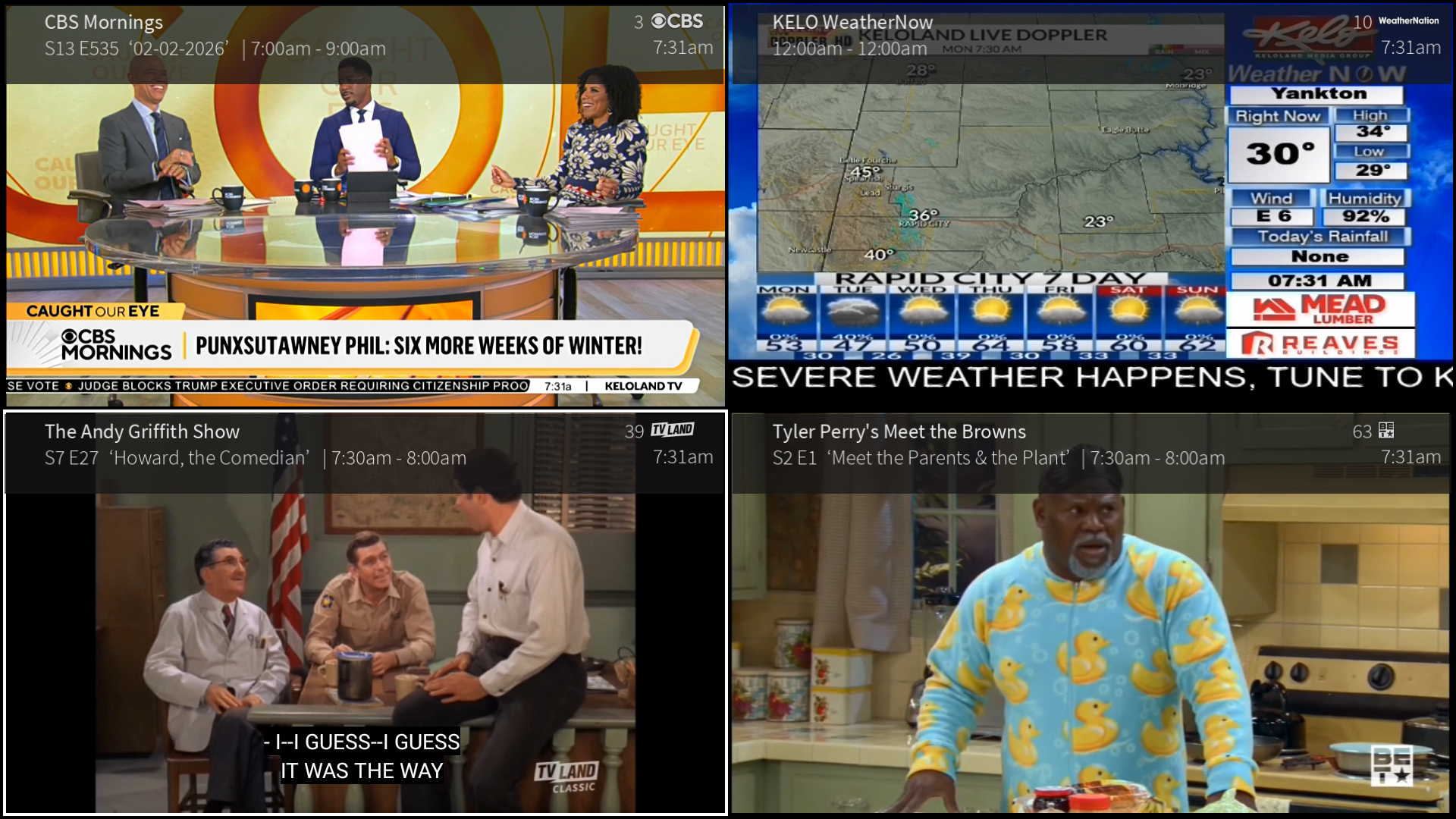
MultiView is a MidcoTV feature that lets you watch up to four channels at once on a single screen, making it easy for multichannel sports viewing, dual streaming a show alongside live sports or multistreaming the news, weather and sports.
MultiView is available on all MidcoTV set top boxes. MultiView is not available using the MidcoTV app on customer-provided devices.
There are three ways to enter MultiView:
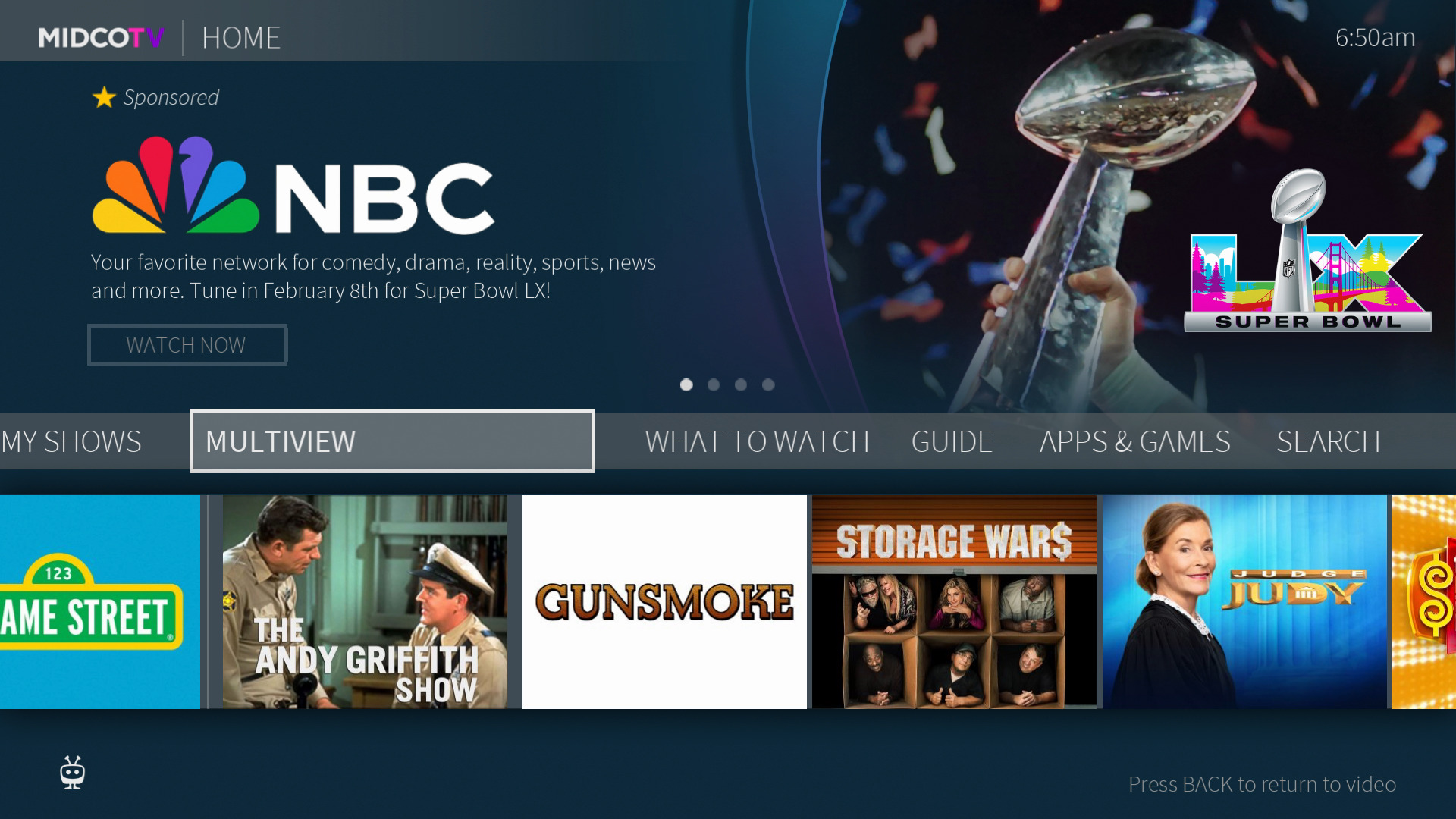
- Press the TiVo button and then click MULTIVIEW on the navigation bar.
- When watching a live channel, press the info (i) button and then select MultiView from the full info banner.
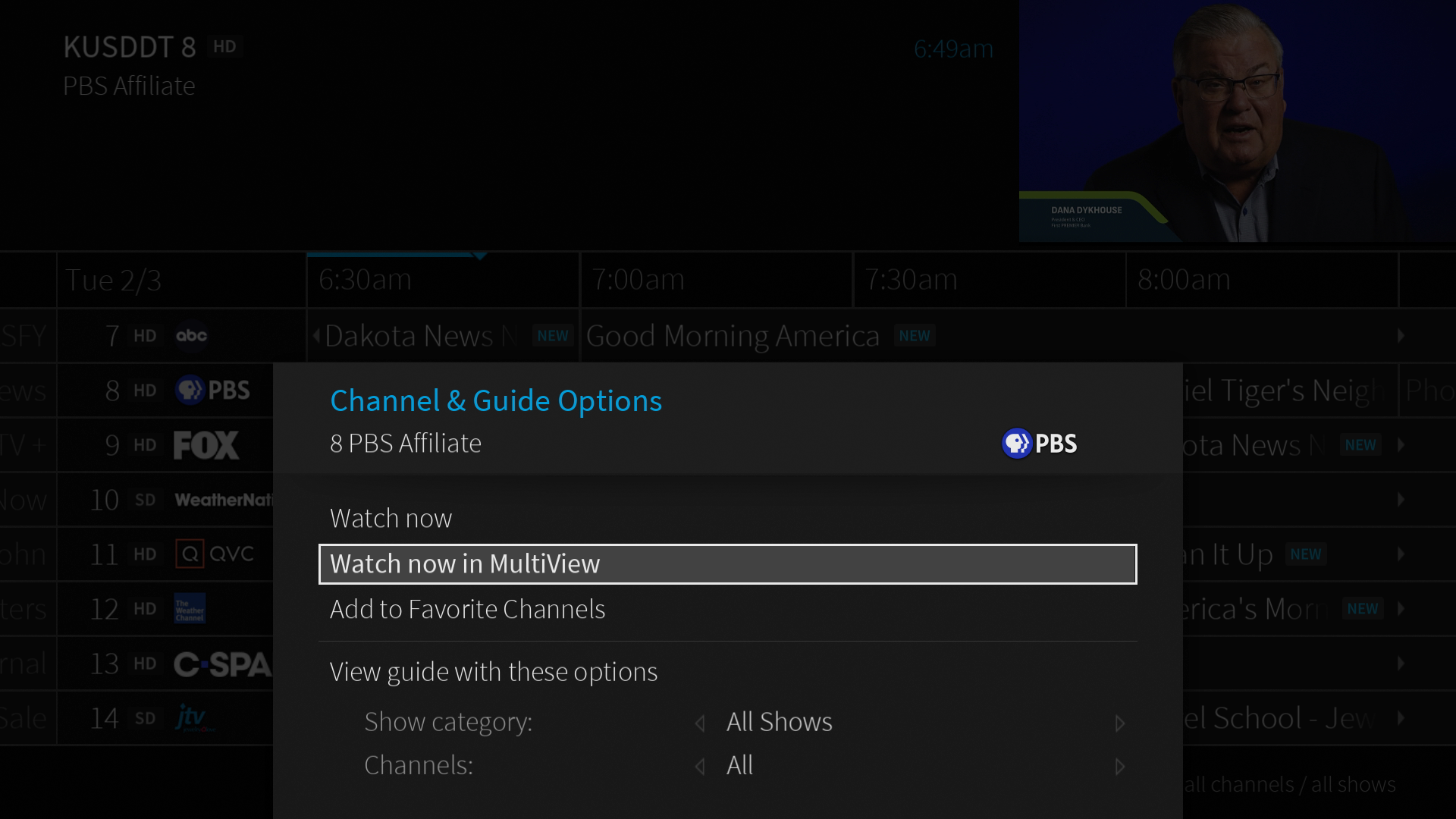
- Select Watch now in MultiView under Channel & Guide Options.
- This option only appears if the current channel supports MultiView.
Note: MultiView always starts from a live channel. Playback controls are not available in MultiView.
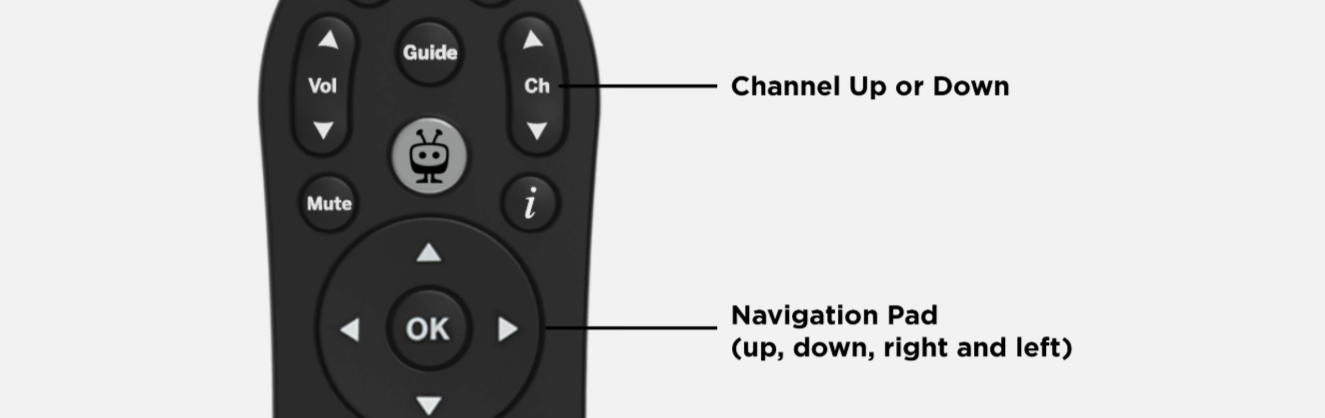
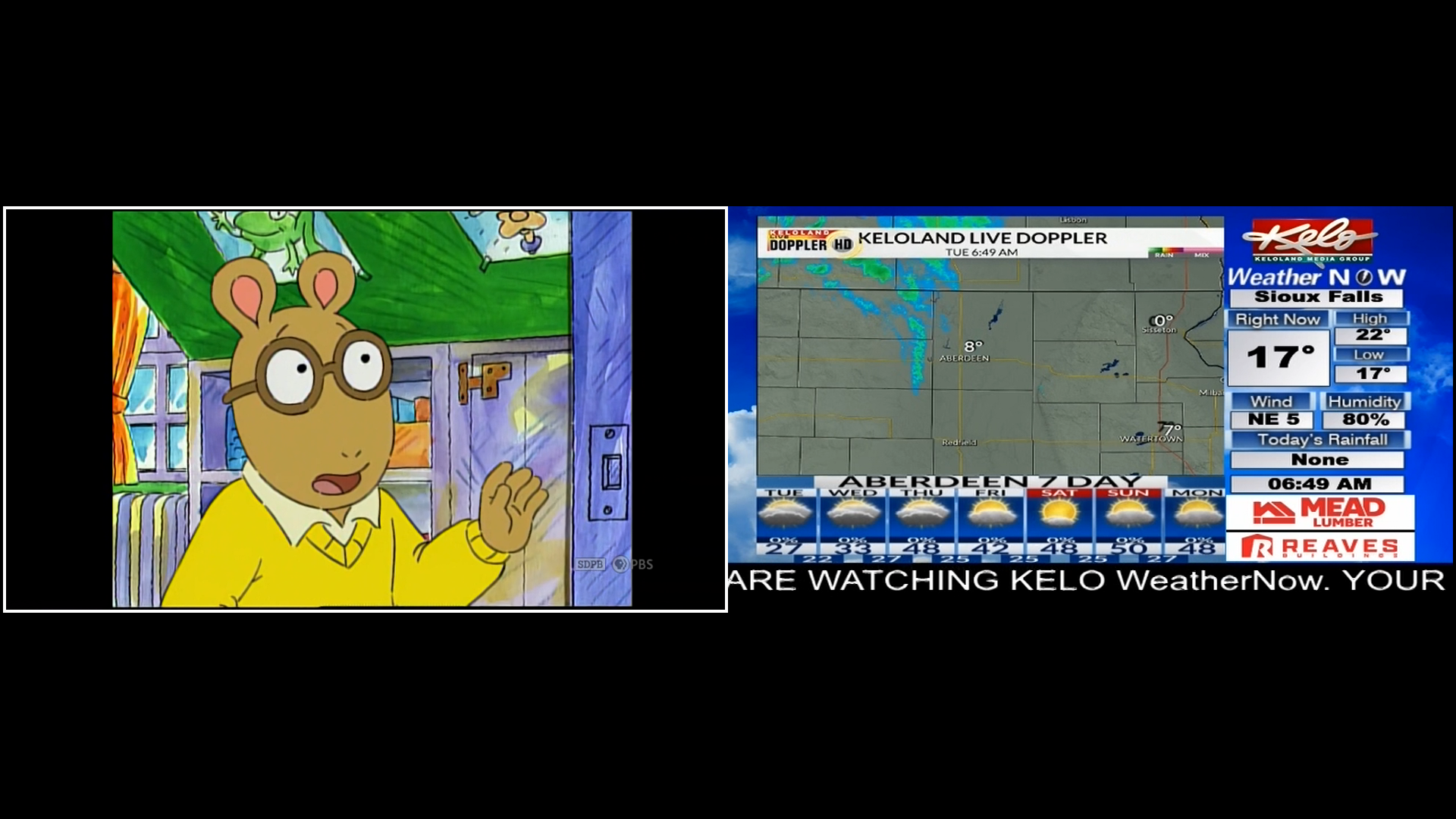
When in MultiView, navigate between screens using the Left, Right, Up and Down buttons on your remote. Audio will play only from the highlighted screen. The channel with the white border indicates the currently highlighted channel.
Change channels within a highlighted screen using the Channel Up or Channel Down buttons, or by entering a channel number directly.
To enter full screen mode for one of the channels shown in MultiView, press the OK/Select button while highlighting the screen. After switching channels in full screen, press the Back button to return to MultiView.
When launched for the first time, MultiView displays the four most recently watched channels.
If you do not have any recently watched channels, MultiView displays the first four of your favorite channels. If you do not have any favorite channels set, MultiView opens with the four lowest TV channels in your channel lineup.
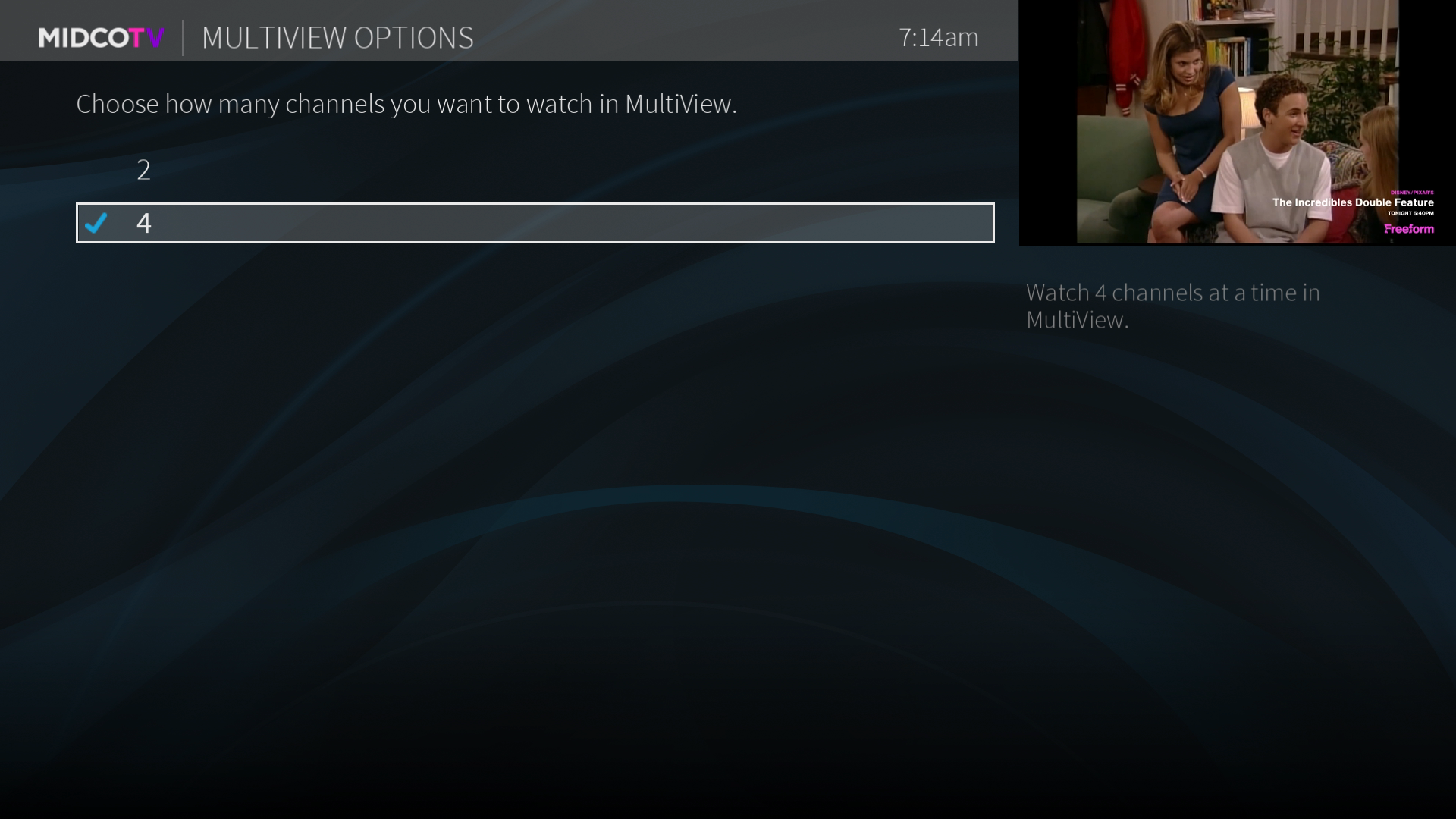
MultiView can display either two or four channels at a time. By default, the feature opens in a four‑screen layout.
To change the number of screens displayed, press the TiVo button, select Settings, then choose User Preferences and then select MultiView Options.
An info banner appears automatically when MultiView is launched or when the Info button is pressed on the remote.
The banner disappears after around 5 seconds if no action is taken.
- Closed captioning displays only on the currently highlighted channel, if captions are enabled.
- Changing the highlighted screen also changes which program displays captions.